
Download Trickster – Advanced Recent Files Finder for Mac
Overview
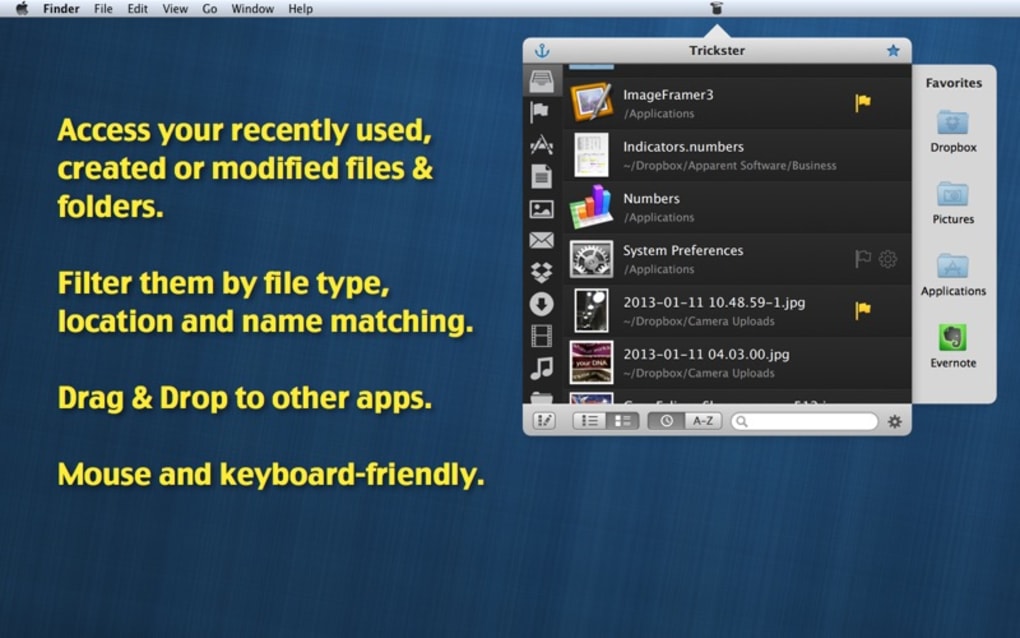
In the daily swirl of creative work, design drafts, code snippets, and high‑resolution images can disappear as quickly as they appear. Trickster answers that frustration with a sleek, jet‑black interface that behaves like a magician’s hat for your most recently used files. Unlike the default “Recent Items” pane built into macOS, Trickster offers a dedicated window that surfaces every file you’ve opened, saved, or even previewed within the last few hours, days, or weeks. The app is lightweight, runs quietly in the menu bar, and instantly expands to reveal a sortable list, thumbnail previews, and quick‑open actions.
What truly sets Trickster apart is its automation‑ready architecture. Power users can script custom recent‑list filters, schedule automatic clean‑ups, and even export the list to CSV for audit purposes. While the visual theme is a deep, matte black that contrasts with Apple’s Aqua aesthetic, the design is intentionally minimalist: a single column of file names, paths, and timestamps that can be resized on the fly. The app does not replace the native file‑opening capabilities of macOS; instead, it complements them by acting as a rapid‑access hub. Whether you’re a freelance photographer hunting down a RAW file, a developer chasing a configuration script, or a student searching for the latest version of a research paper, Trickster dramatically reduces the time spent digging through Finder or Spotlight.
Security is baked in – the app never transmits your file paths or metadata to external servers, and it respects macOS sandboxing rules. Updates are delivered via the Mac App Store, ensuring a secure, signed installation each time you download a newer version. In short, Trickster is a free, secure, and highly configurable tool that transforms the way macOS users retrieve recently used files, boosting productivity with just a single click.
Key Features
- Dynamic Recent‑File Window: Real‑time list of files opened, saved, or previewed across all applications.
- Customizable Time Ranges: Filter recent items by minutes, hours, days, or weeks with a simple dropdown.
- Thumbnail Previews: Inline thumbnails for images, PDFs, and supported document types.
- Search & Sort: Instant search bar and sortable columns (name, path, date modified, size).
- Automation Support: AppleScript and Automator actions to generate custom recent‑list reports.
- Export Capability: Export current view to CSV or JSON for sharing or archival.
- Menu Bar Integration: Quick access from the macOS menu bar without cluttering the Dock.
- Dark‑Theme Design: Jet‑black UI that reduces eye strain during late‑night sessions.
- Secure Local Storage: All history is stored locally; no cloud sync or external transmission.
- Automatic Updates: Seamless updates through the Mac App Store to keep the app secure and compatible.
Installation & Usage Guide
Downloading the App
Begin by visiting the official Trickster page on the Mac App Store or the developer’s website. Click the Get button, then authenticate with your Apple ID. The download process typically takes less than a minute on a standard broadband connection. Once the .app file appears in your /Applications folder, double‑click to launch. macOS will prompt you to confirm that you want to open an app downloaded from the internet; select Open to proceed.
First‑Run Configuration
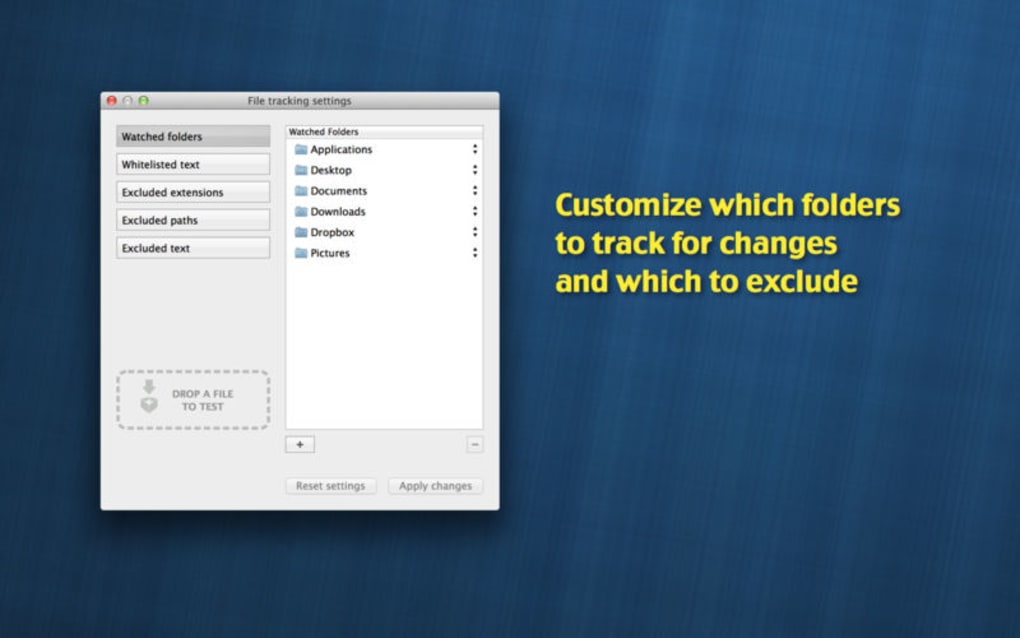
On first launch, Trickster presents a brief onboarding wizard. You’ll be asked to grant “Full Disk Access” under System Settings > Privacy & Security > Full Disk Access. This permission is required for the app to monitor file activity across the system. After enabling the permission, restart Trickster. The main window will appear, displaying a default list of files opened in the last 24 hours.
Customizing Recent Lists
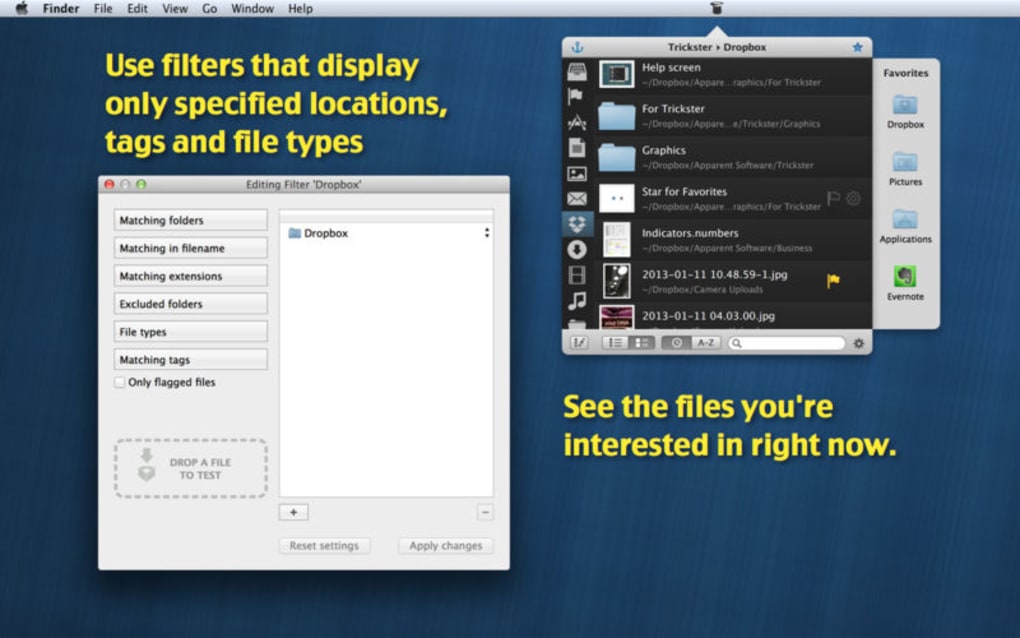
Click the gear icon in the upper‑right corner to open the preferences pane. Here you can set the default time range, choose which file types to include, and enable thumbnail generation. For power users, the Automation tab provides a field where you can paste AppleScript code that runs each time the list updates. For example, you might script a rule that automatically highlights any PDF larger than 10 MB.
Using the App Day‑to‑Day
The core workflow is straightforward: click the Trickster icon in the menu bar, then select Show Recent Files. The window expands, and you can type in the search bar to filter by name or path. Double‑click a file to open it in its default application, or right‑click for a contextual menu offering “Reveal in Finder,” “Copy Path,” or “Add to Favorites.” Favorites are saved across sessions, giving you a permanent shortcut for frequently used documents.
To keep the list tidy, use the Clear History button at the bottom of the window. This action removes all tracked entries but does not affect the actual files on disk. For a more granular clean‑up, select individual entries and press Delete.
Compatibility, Pros & Cons
Supported Operating Systems
macOS 10.12 (Sierra) and later, including macOS Ventura and macOS Sonoma.
Pros
- Fast, responsive UI that loads recent files instantly.
- Deep integration with macOS privacy controls ensures security.
- Extensive automation support for power users.
- Export options make it easy to share recent‑file reports.
- Free to download with optional in‑app donations for continued development.
Cons
- Jet‑black theme may clash with the default Aqua look for some users.
- No native Windows or Linux version (macOS‑only).
- Advanced automation requires familiarity with AppleScript.
- Lacks built‑in cloud sync; history is stored locally only.
- Cannot preview certain proprietary file formats (e.g., Adobe InDesign).
Frequently Asked Questions
How does Trickster track recent files?
Trickster monitors macOS’s file‑system events through the FSEvents API. Every time an application opens, saves, or modifies a file, the event is logged locally and displayed in the recent‑files window.
Is my data safe? Does Trickster send any information online?
All file paths and timestamps are stored only on your Mac. Trickster does not transmit any data to external servers, and all updates are delivered securely through the Mac App Store.
Can I use Trickster with iCloud‑synced folders?
Yes. Since iCloud files appear as regular files in the Finder, Trickster treats them like any other local file and includes them in the recent‑files list when they are opened or edited.
What automation options are available?
Trickster supports AppleScript, Automator actions, and shell scripts that can be triggered on list refresh. Users can create custom filters, generate CSV reports, or launch secondary apps based on file type.
Is there a paid version with extra features?
The core app is free. Developers offer an optional “Pro” donation that unlocks priority support and early access to beta features, but no additional paid tier is required to use the full feature set.
Conclusion & Call to Action
If you’ve ever spent minutes hunting for that one image, script, or PDF you know you opened just yesterday, Trickster is the shortcut you didn’t realize you needed. Its blend of a minimalist dark UI, real‑time file tracking, and robust automation makes it a standout utility for anyone who works on macOS and values speed over visual conformity. While the design may feel a little at odds with Apple’s classic Aqua look, the productivity gains quickly outweigh the aesthetic mismatch. Moreover, because the app is free, secure, and updated through the Mac App Store, there’s no financial risk in giving it a try.
Ready to reclaim lost files and boost your workflow? Download Trickster now and let your recent‑files hat do the magic. Experience the convenience of instant file retrieval, customize your own recent lists, and join the growing community of Mac power users who have already made Trickster a permanent part of their productivity toolkit.







